.jpg?width=40&height=40&name=Rachel-Rhodes-(Avatar).jpg)
"Using the Scan to Email feature on your copier is a simple way to improve your everyday workflow."
Save time and eliminate extra steps by sending scanned documents directly from your multifunction copier to your email recipients.
We may all live in a digital world but, even so, at some point you'll receive physical pieces of paper and need to send them to someone electronically.
Accomplishing this always seems to involve a small amount of irritation. For whatever reason, those few extra steps tend to make the process seem daunting, even when it's really not. Although it may not be as big of a deal as it feels, it's still a bit of a time suck. You have to scan the paper to save it to a designated spot on the server, then return to your desk, open your email, create a new message, search for the document, attach it, and finally send it. Many times, once the email has been sent, that file is never needed again and simply sits on your server creating unnecessary clutter.
If you only need to send that document to one person, or even a small group, one time, you can eliminate those extra steps by scanning directly to email from your multifunction copier.
Why Use Scan to Email?
Using the Scan to Email feature on your copier is a simple way to improve your everyday workflow.
Some of the biggest benefits include:
- Save time by sending documents directly from the copier without returning to your computer.
- Increase productivity by reducing manual steps in your scanning process.
- Reduce server clutter by eliminating temporary files that don't need to be stored.
- Share documents faster with coworkers, customers, vendors, or business partners.
- Simplify everyday office tasks for employees who frequently scan invoices, signed documents, contracts, or forms.
Even saving a minute or two on each scan can make a noticeable difference over the course of a busy workweek.
How to Scan Directly to Email
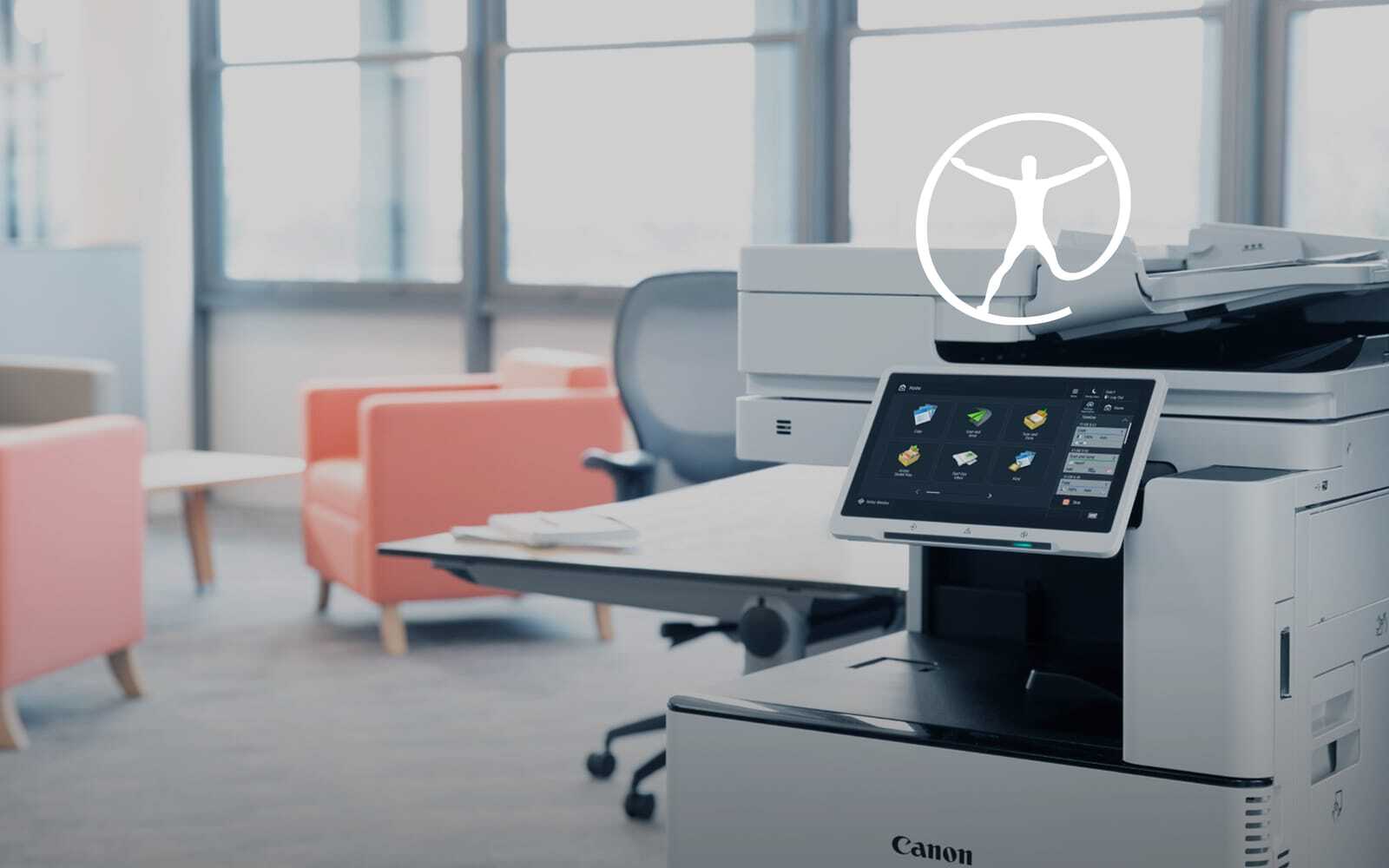
- Select the Scan and Send icon on the display.
- Select New Destination.
- Choose Email Recipient.
- Enter the recipient's email address.
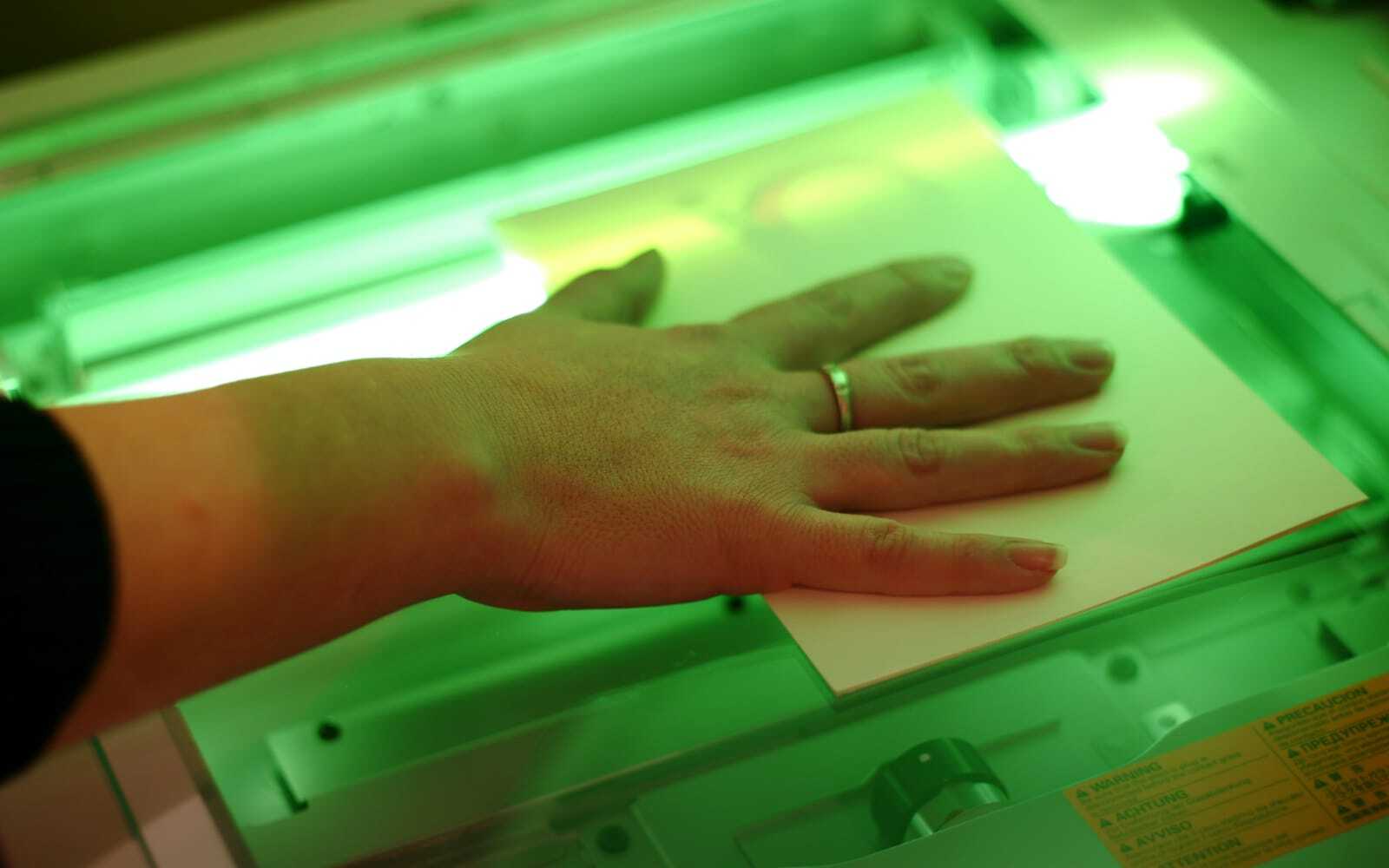
- Place your document in the document feeder or on the glass.
- Press Start.
Your copier scans the document and sends it directly to the recipient's inbox, saving you several manual steps.
Looking for Even More Scanning Options?
Many modern multifunction printers can do much more than scan to email. Depending on your equipment and software, you may also be able to scan directly to Microsoft SharePoint, network folders, or popular cloud storage platforms to further streamline your document workflows.
If you're not sure what your current copier is capable of, the Datamax team can help you identify features that may already be available on your device.