.jpg?width=40&height=40&name=Rachel-Rhodes-(Avatar).jpg)
"Whether you're using Canon uniFLOW, another print management platform, or native copier scanning features, implementing scan to SharePoint can help your business eliminate unnecessary manual work and improve document accessibility."
If you're scanning documents and then manually uploading them into Microsoft SharePoint, you're spending more time than necessary.
Many businesses rely on SharePoint as their central document management and collaboration platform. Whether you're using SharePoint Online through Microsoft 365 or an on-premises SharePoint environment, your multifunction copier can often send scanned documents directly into your SharePoint libraries.
That means fewer manual steps, faster document access, and improved workflow efficiency for your entire organization.
Why Scan Directly to SharePoint?
Microsoft SharePoint provides a secure location where you can store, organize, share, and access business documents from virtually anywhere.
Instead of following this process:
- Scan a document to email or a network folder.
- Save the file to your computer.
- Open SharePoint.
- Browse to the correct document library.
- Upload the file manually.
You can simplify everything into a single step by scanning directly from your copier to the correct SharePoint location.
The result is:
- Faster document processing
- Fewer manual tasks
- Reduced filing errors
- Better document organization
- Improved collaboration among your employees
How Scan to SharePoint Works.
Modern multifunction printers (MFPs) can connect directly with Microsoft SharePoint through supported software platforms such as uniFLOW and similar document capture solutions.
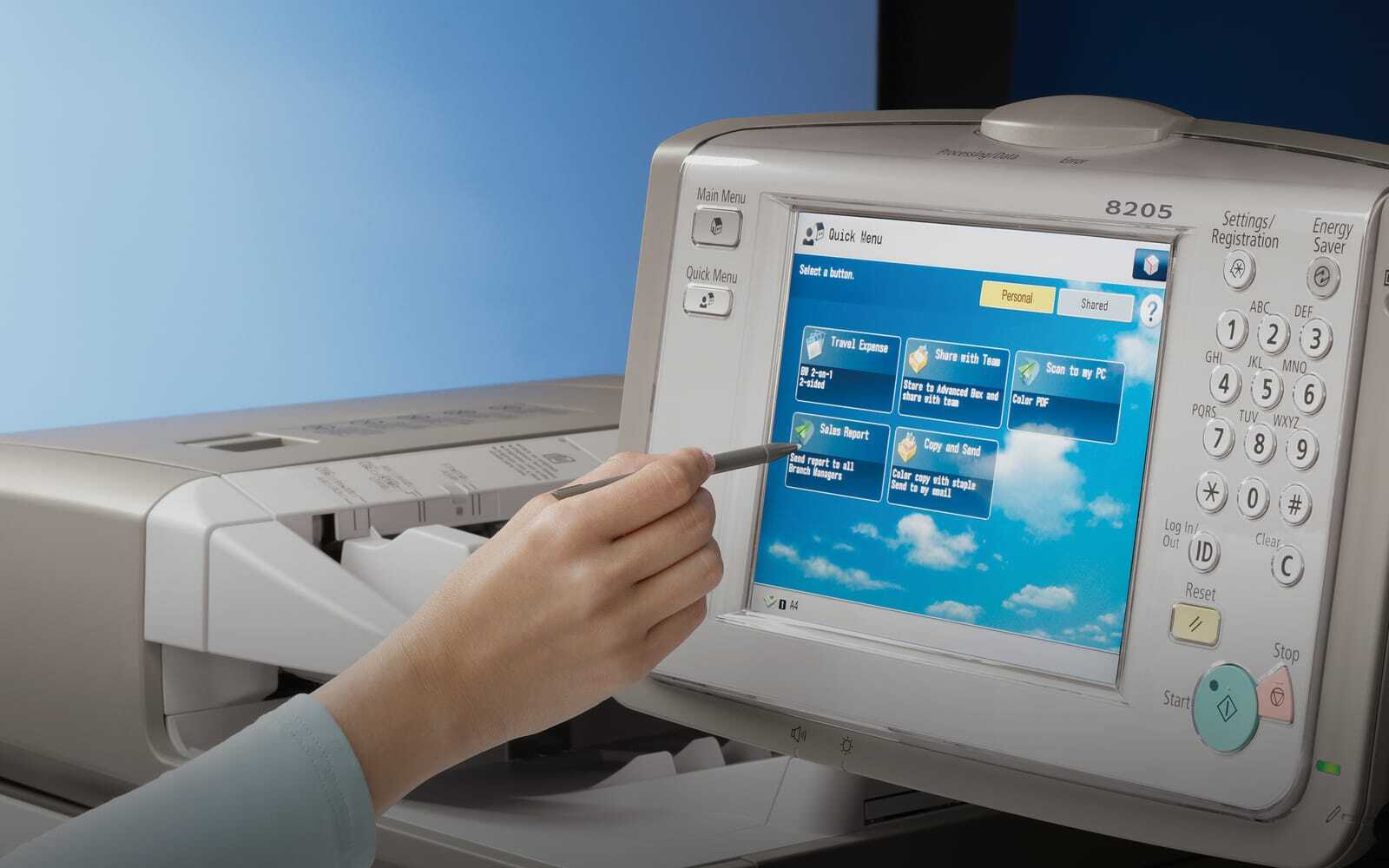
From the copier's touchscreen, users can:
- Browse approved SharePoint folders
- Select the correct document library
- Scan directly into SharePoint
- Apply document naming conventions
- Add metadata when required
- Secure documents before they are stored
This eliminates unnecessary handling of sensitive business documents and helps ensure files are stored in the correct location the first time.
Configuration Can Be Simple or Complex.
In some environments, setting up scan to SharePoint is relatively straightforward.
Often, it simply requires:
- The SharePoint site address
- Port information
- User credentials
- Appropriate permissions
However, every IT environment is different.
Factors such as:
- Your copier manufacturer
- Print controllers
- Authentication methods
- Network security policies
- Microsoft Entra ID (formerly Azure Active Directory)
- SharePoint version
- Firewall settings
... can all affect the implementation.
Solutions like uniFLOW typically require additional configuration to ensure secure authentication and reliable communication with SharePoint. This is one reason many organizations choose to have their copier provider or IT partner complete the setup.
Benefits Beyond Convenience
Scanning directly into SharePoint does more than save a few clicks.
It can also help your organization:
- Improve document management
- Reduce paper handling
- Increase employee productivity
- Support compliance initiatives
- Create consistent filing practices
- Make documents easier to find through SharePoint search
- Reduce the risk of lost or misplaced files
For businesses that process invoices, HR documents, customer files, contracts, or forms every day, these efficiencies can add up quickly.
Can You Scan to Other Cloud Platforms?
Absolutely. Many modern copiers also support direct scanning to popular cloud storage platforms, allowing your employees to work wherever business takes them.
Need Help Setting Up Scan to SharePoint?
If your copier supports SharePoint integration, you may already have the tools needed to automate your document workflow. The key is ensuring the hardware, software, authentication, and security settings are configured correctly for your environment.
Whether you're using Canon uniFLOW, another print management platform, or native copier scanning features, implementing scan to SharePoint can help your business eliminate unnecessary manual work and improve document accessibility.
If you're unsure whether your current multifunction printer can scan directly to SharePoint, our team can help you evaluate your equipment and recommend the best solution for your workflow.


4 Signs It's Time to Consider a Print Management Solution on Campus
Did You Know: You Can Scan Directly to Email